
Gemini Guided Vision uses Gemini Live and an Android phone camera to read fine print, identify objects, and describe nearby surroundings aloud. It can answer follow-up questions and provide camera-positioning cues, but users should not rely on it for navigation, obstacle detection, or other safety-critical tasks.
Key takeaways
- Gemini Guided Vision combines live camera input with spoken descriptions through Gemini Live.
- Users can examine small text, identify objects, and explore nearby surroundings without taking separate photos.
- Follow-up questions let users request additional details about the same item or scene.
- Audio cues can help users reposition the camera when the requested detail is not clearly visible.
- Google’s tool is an accessibility aid, not a replacement for mobility support or safety-critical visual guidance.
Google is introducing Gemini Guided Vision, an accessibility-focused feature that uses Gemini Live to help people examine text, objects, and nearby surroundings through a phone camera. On compatible Android devices, users can point the camera at something they want to understand and receive spoken descriptions in real time.
The feature is designed as a practical visual assistance tool, particularly for people with low vision. It can help with everyday tasks such as reading small labels, identifying an unfamiliar object, or learning more about what is nearby—without requiring users to take a photo and analyze it separately.
What Gemini Guided Vision Does Through Gemini Live
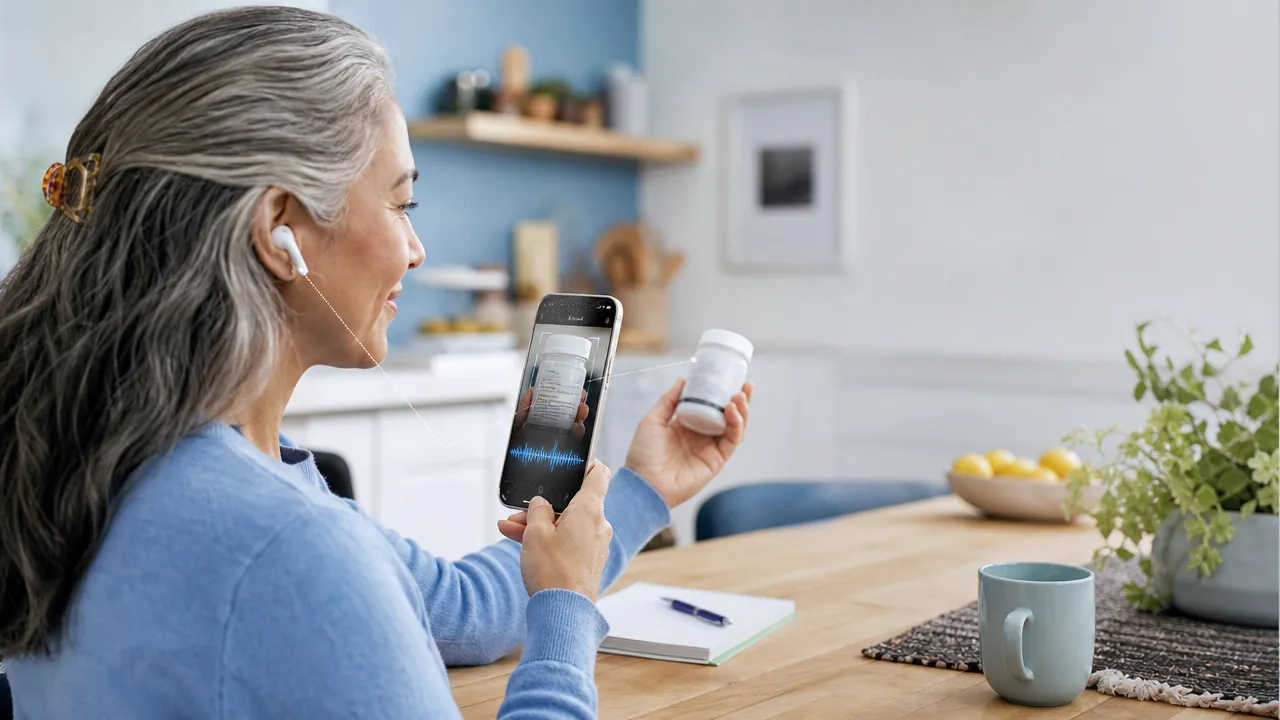
Guided Vision works through a live conversation with Gemini. After starting Gemini Live, users can direct the camera toward text, an item, or a surrounding area. Gemini then uses the camera feed to provide audio descriptions and respond to questions about what it sees.
That makes the interaction more flexible than a single image description. A user might first ask Gemini to describe an item, then continue with a more specific request. For example, someone examining a food package could ask Gemini to read the label and then follow up by asking for the expiration date.
The feature can also support broader exploration. Pointing the camera around a room or an unfamiliar area may help users understand the objects and visual details in front of them. The usefulness depends on the quality of the camera view, the available lighting, and Gemini’s ability to interpret the scene.
Read Text, Identify Objects, and Ask Follow-Up Questions
Guided Vision’s potential value comes from combining several common visual-assistance tasks in one conversation:
- Reading fine print: Gemini can help users examine small text on packaging, labels, signs, or other printed material.
- Identifying objects: Users can ask what an item is or request a description of its visible features.
- Describing surroundings: Gemini can provide audio information about nearby objects and the broader scene.
- Answering follow-up questions: Users can ask for additional details instead of restarting the interaction each time.
This conversational approach may be especially useful when a task involves several steps. Someone sorting household products, for instance, could ask Gemini to identify each item and then request details such as its color, label, or expiration date. A person exploring an unfamiliar indoor setting could ask what is visible and then narrow the conversation to a particular object.
Audio Cues Help Users Aim the Camera at the Right Detail
A key part of the experience is guidance when the requested object is not clearly in view. Gemini can provide audio cues to help users reposition the phone and aim the camera toward the relevant detail.
That matters when reading small print or examining a specific object. Rather than simply reporting that it cannot see the requested item, Gemini can help the user adjust the camera until the subject is more visible. The result is intended to feel like an on-demand audio assistant guiding the camera, not just a tool that delivers a one-time description.
A Useful Accessibility Aid With Important Safety Limits
Gemini Guided Vision could make everyday visual information easier to access, but it is not a replacement for mobility aids, orientation and mobility training, or other accessibility tools. Google cautions that users should not rely on it for navigation, safe-travel guidance, or obstacle detection.
AI-generated descriptions can be incomplete or incorrect. Camera position, lighting, motion, background clutter, and unclear text may all affect the response. Users should independently confirm important information, especially when a mistake could affect health, safety, or a purchase decision.
Used within those limits, Guided Vision offers a convenient way to explore surroundings, inspect specific objects, and read information that might otherwise be difficult to see. Try Gemini Live on a compatible Android device to explore Guided Vision, and review Android’s accessibility features to find tools that fit your needs.
By the numbers
Google’s described feature supports three core visual-assistance tasks: reading text, identifying objects, and describing surroundings.
This three-part capability summary is based on the supplied article’s feature description and should be treated as a product-functionality data point rather than an independent performance statistic.
The article identifies three safety-critical uses that Guided Vision should not replace: navigation, safe-travel guidance, and obstacle detection.
This limitation comes from Google’s stated safety guidance as summarized in the supplied article; no quantitative accuracy or safety benchmark is provided.
Guided Vision is presented as a conversational experience that supports follow-up questions within the same Gemini Live interaction.
The supplied article describes multi-turn examination of labels, objects, and scenes, distinguishing the feature from one-time image analysis.
Step by step
- 01
Start Gemini Live
Open Gemini Live on a compatible Android device and begin a live conversation before pointing the phone camera at the subject.
- 02
Aim the camera at the subject
Point the camera toward text, an object, or the surrounding area you want Gemini to examine, using its audio cues to improve framing when needed.
- 03
Ask for a focused description
Request a specific task such as reading a label, identifying an object, describing a room, or locating visible details.
- 04
Ask follow-up questions
Continue the conversation to request details such as an item’s color, label information, or expiration date without restarting the session.
- 05
Verify important information
Independently confirm health, purchase, and safety-related information because lighting, motion, camera angle, and AI interpretation can cause errors.
Frequently asked questions
What is Gemini Guided Vision?
Gemini Guided Vision is an accessibility-focused Gemini Live feature that uses a phone camera to describe text, objects, and surroundings aloud. It is designed to help people, particularly users with low vision, examine visual information through a conversational interface. The feature can also provide cues to help position the camera more effectively.
How does Gemini Guided Vision read fine print?
Gemini Guided Vision examines text visible through the Android phone camera and reads or explains it through audio. Users can point the camera at labels, packaging, signs, or other printed material and ask follow-up questions about specific details. Results depend on lighting, focus, camera position, and text clarity.
Can Gemini Guided Vision identify objects?
Yes, Gemini Guided Vision can describe or identify visible objects when users point the camera at them. Users can ask about an item’s appearance and then request additional details such as its color or label. Recognition may be incomplete or inaccurate when the object is obscured or poorly lit.
Is Gemini Guided Vision safe for navigation?
No, users should not rely on Gemini Guided Vision for navigation, obstacle detection, or safe-travel guidance. Google’s feature can produce incomplete or incorrect descriptions, particularly in changing or cluttered environments. It should complement, not replace, mobility aids, orientation and mobility training, or other accessibility tools.