
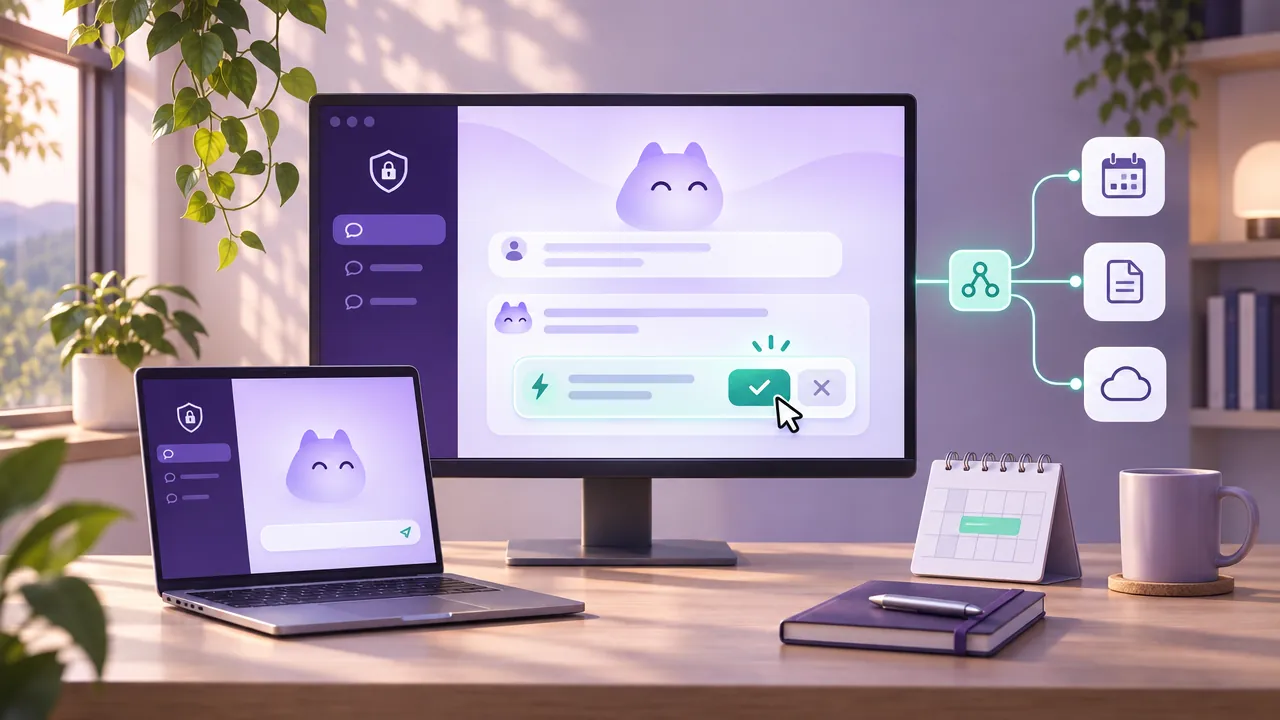
Proton Lumo is now available as a desktop app for Windows, macOS, and Linux, with support for connected files, apps, local and remote MCP servers, and scheduled tasks. Users can choose whether AI actions run automatically, require approval, or are blocked.
Key takeaways
- Proton Lumo desktop is available for Windows, macOS, and Linux.
- Users can connect selected apps, files, and folders to give Lumo task context.
- Lumo supports both local and remote Model Context Protocol servers.
- Users can allow actions automatically, require approval, or block them, and can disable individual tools during a conversation.
- Scheduled tasks have separately configurable permissions, and Proton says connected data is not used for personalized ads or model training.
Proton has brought its privacy-focused Lumo AI assistant to desktop, with apps for Windows, macOS, and Linux. The release adds support for connecting apps, files, and folders to Lumo, plus controls that let users decide what actions the assistant may take. It also supports local and remote Model Context Protocol (MCP) servers, which can give AI agents access to external data sources.
The desktop release moves Lumo beyond a chat window: users can give the assistant access to selected information and use it for computer tasks and automations. Proton’s approach puts configurable access at the center, allowing people to set boundaries before an AI agent acts.
Lumo arrives on Windows, macOS, and Linux
The new Proton Lumo desktop app is available across the three major desktop operating systems. Users can connect personal files and folders, as well as compatible apps, so Lumo can work with information beyond the conversation itself.
That access can support practical requests, such as asking an assistant to use information in connected files while completing a task. The key distinction is that users can manage what Lumo is permitted to access and do, rather than treating every request as automatic authorization.
MCP connectors and scheduled tasks bring AI actions onto the desktop
Lumo supports both local and remote MCP servers. MCP is a protocol that allows AI systems to connect with external tools and data sources. In practice, connectors can give an assistant a route to information or capabilities beyond its own chat interface, with the available access depending on the server and the permissions a user grants.
The app also supports scheduled tasks. Users can configure an action to run on a schedule and set permissions separately for each task. This matters because an automated task may not have the same needs as a one-off conversation: a user can decide what it may access and which actions need review.
For example, someone might allow a recurring task to read selected information while requiring approval before it makes changes. The precise scope depends on the connected tools and the permissions configured by the user.
Users can set permissions, while Proton says connected data is not used for ads or model training
Lumo offers three broad choices for agent actions: allow them automatically, require approval, or block them. Users can also turn off individual tools during a conversation. These controls make it possible to grant access selectively instead of giving an assistant blanket permission.
Proton says conversations and information from connected apps and files are not used for personalized advertising or to train AI models. That is a central part of the product’s positioning for people considering a privacy-focused AI assistant, including those comparing it with services such as ChatGPT or Claude. The controls address a different but related question: not only how a provider says it handles data, but what an assistant can do with access to it.
As with any connected AI tool, users should review the permissions attached to each connector and scheduled task before enabling them. A connector may expose useful context, but the amount of access should fit the task.
Proton Lumo desktop combines connected data, MCP support, and scheduled actions with user-configurable permissions. Its defining feature is that access can be shaped around the user’s preferences. Explore the desktop app and review connector and task permissions before connecting apps or files.
By the numbers
The Lumo desktop app is available on three operating systems: Windows, macOS, and Linux.
Proton’s desktop release details list support for all three platforms.
Lumo supports two MCP server connection types: local and remote.
The article’s product details describe both connection options; the access available depends on the server and the permissions granted.
Lumo offers three broad action permission choices: allow automatically, require approval, or block.
These are the user controls described for agent actions in the Proton Lumo desktop app.
Step by step
- 01
Install Proton Lumo desktop
Get the desktop app for Windows, macOS, or Linux and open it on the device where you want to use connected information and tools.
- 02
Connect selected apps and files
Choose the apps, files, or folders Lumo may use, and limit access to information relevant to the tasks you plan to give it.
- 03
Configure MCP server access
Connect a compatible local or remote MCP server, then review the data or capabilities it exposes and the permissions you grant.
- 04
Set action permissions
Choose whether actions can run automatically, need your approval, or should be blocked. Turn off individual tools during a conversation when they are not needed.
- 05
Review scheduled task permissions
Set permissions for each scheduled task separately and decide whether it may access information or take actions without further review.
Frequently asked questions
What is Proton Lumo desktop?
Proton Lumo desktop is Proton’s AI assistant app for Windows, macOS, and Linux. It can use information from connected apps and files, as well as tools exposed through MCP servers. Users can configure what the assistant is allowed to access and do.
What can Proton Lumo MCP connectors do?
MCP connectors let Lumo connect to external data sources and tools through local or remote MCP servers. The information and capabilities available depend on the server and the permissions the user grants. Review each connector’s access before enabling it.
How do Proton Lumo action permissions work?
Users can allow actions automatically, require approval, or block them. They can also turn off individual tools during a conversation. Scheduled tasks have separate permission settings, so their access can be configured independently.
Does Proton use Lumo connected data to train AI models?
Proton says Lumo conversations and information from connected apps and files are not used to train AI models or for personalized advertising. This is Proton’s stated data-use policy for Lumo. Users should still check the permissions granted to each connector and task.